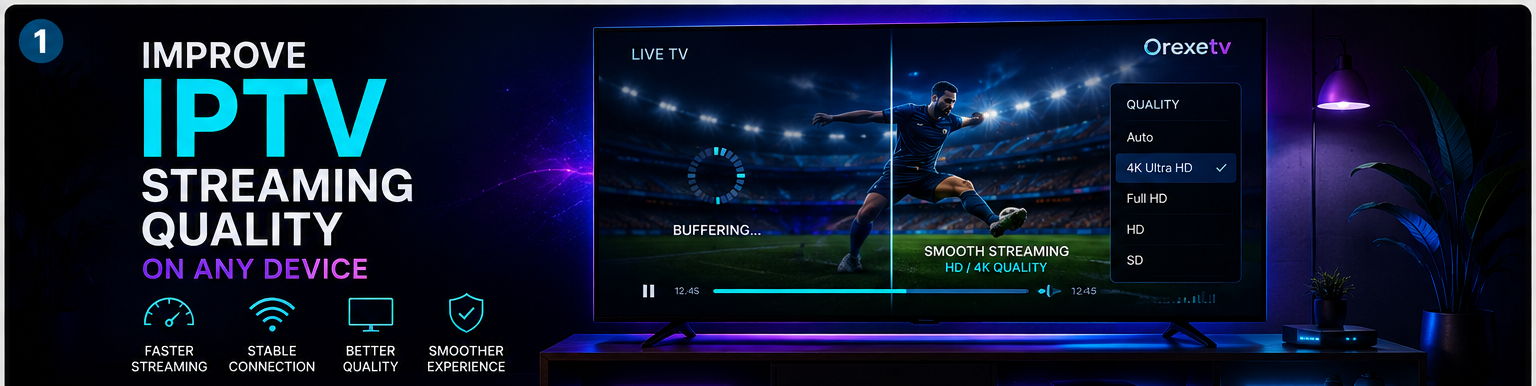
How to Improve IPTV Streaming Quality on Any Device
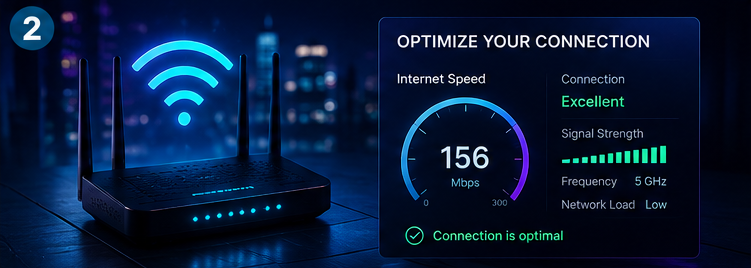
A good IPTV experience depends on more than simply having a fast internet connection. Your device, Wi-Fi network, IPTV player, video settings and even the way your network is configured can all affect streaming quality.
If your IPTV picture looks blurry, channels keep buffering, 4K playback freezes, or streams take too long to start, there are several things you can check before replacing your equipment. If you are experiencing audio synchronization issues, you can also review our guide on fixing IPTV audio out of sync.
The following guide explains practical ways to improve IPTV streaming quality on Smart TVs, Android TV devices, Fire TV devices, smartphones, tablets and computers.
How to Improve IPTV Streaming Quality1. Start With Your Internet Connection
Your internet connection is one of the first things to check when IPTV quality is poor.
A connection can appear fast during a normal speed test while still experiencing instability, packet loss or congestion during streaming.
Run a speed test directly on the device you use for IPTV whenever possible.
Avoid relying only on the speed measured from your phone because the phone may have a stronger Wi-Fi signal than your television or streaming box.
For a better IPTV experience:
- Check your download speed.
- Check whether the connection is stable.
- Test the connection at different times of the day.
- Disconnect unnecessary devices when troubleshooting.
- Restart your router if the connection appears unstable.
If your internet connection is consistently unstable, improving the network should be the first priority.
2. Use Ethernet When Possible
Wi-Fi is convenient, but Ethernet can provide a more consistent connection for a stationary television or streaming box.
An Ethernet connection avoids many of the problems associated with wireless interference, distance from the router and network congestion.
If your Smart TV or Android TV box has an Ethernet port, connect it directly to your router and compare playback quality.
If buffering disappears after switching from Wi-Fi to Ethernet, the IPTV service may not have been the problem at all.
Your wireless network was likely the weak point.
 Ethernet Connection for IPTV
3. Improve Your Wi-Fi Signal
If Ethernet is not an option, improve the quality of your wireless connection.
Try placing your router in a more open and central location.
Avoid keeping the router behind large furniture or inside enclosed cabinets.
You can also try connecting your streaming device to a 5 GHz Wi-Fi network if both the router and device support it.
5 GHz can provide higher speeds and less interference at shorter distances, while 2.4 GHz generally provides better range.
The best option depends on the layout of your home.
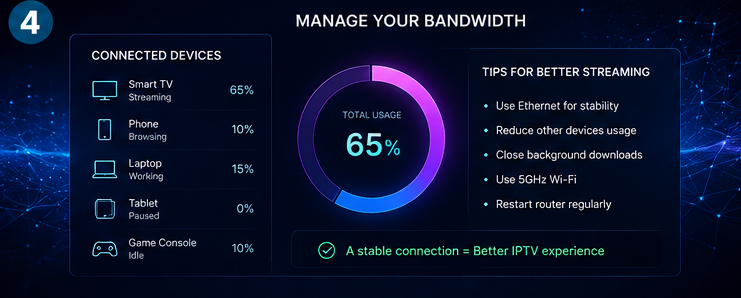
4. Reduce Network Congestion
Multiple devices using the same connection can affect streaming performance.
For example, someone downloading a large file, playing an online game or uploading video content can consume a significant amount of bandwidth.
When troubleshooting IPTV buffering, temporarily disconnect unnecessary devices and test the stream again.
If the quality improves, your network may be experiencing congestion.
For households with many connected devices, a modern router with traffic-management or Quality of Service features can also help prioritize important traffic.
5. Choose the Right Video Quality
Higher resolution requires more bandwidth and processing power.
4K video generally requires more resources than Full HD, while Full HD requires more than standard HD.
If your device struggles with high-resolution streams, temporarily test a lower-quality stream.
If HD works perfectly while 4K constantly buffers, the problem may be related to bandwidth, hardware performance or the specific stream rather than IPTV itself.
Choose the highest quality your network and device can consistently handle.
 Improving Wi-Fi Signal for IPTV
6. Check Your IPTV Player Settings
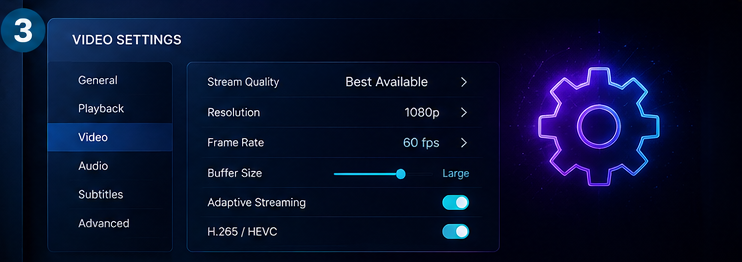
The IPTV player can have a significant effect on playback.
Depending on the application, you may find settings for:
- Hardware decoding
- Software decoding
- Buffer size
- Video output
- Aspect ratio
- Audio synchronization
- Network timeout
- Playback engine
Hardware decoding can reduce the workload placed on the device's CPU by allowing supported hardware to handle video processing.
If playback is unstable, test the available decoder options one at a time.
Do not change multiple settings simultaneously because it makes troubleshooting more difficult.
If you already have a streaming application installed, you can review our OrexeTV setup guide for your device to ensure it is configured properly.
7. Keep Your Streaming Device Updated
Outdated device software can sometimes cause compatibility and playback problems.
Check for available updates for:
- Smart TV firmware
- Android TV
- Google TV
- Fire TV
- IPTV player applications
- Device-specific software
Before updating, make sure the device has enough storage and a stable internet connection.
After installing an update, restart the device and test IPTV again.
8. Free Up Storage and Memory
Streaming devices with limited storage or memory can become slower over time.
Remove applications that you no longer use and clear temporary application data when the operating system provides that option.
If an IPTV application has accumulated a large cache, clearing the cache can sometimes resolve unusual playback or loading problems.
Avoid clearing application data unless you have your login information or playlist details available.
 High Speed Data Network
9. Test Different IPTV Channels
If one channel buffers while other channels work normally, the problem may be isolated to that particular stream.
Test several channels from different categories.
For example:
- News
- Sports
- Entertainment
- Movies
- International channels
If only one or two channels have problems, there may be nothing wrong with your device or internet connection.
However, if every channel buffers, investigate your network, device and IPTV player.
This simple test can save a lot of unnecessary troubleshooting.
10. Restart Your Router and Streaming Device
Restarting your equipment is still one of the easiest troubleshooting methods.
Turn off your streaming device.
Restart your router.
Wait until the internet connection is fully restored, then start the streaming device again.
Open your IPTV application and test playback.
A restart can clear temporary network problems and application processes that have become stuck.
11. Avoid Running Too Many Applications
On devices with limited hardware resources, running multiple applications simultaneously can affect performance.
Close applications that are not being used before starting a high-resolution IPTV stream.
This is especially useful on older streaming devices.
If your device consistently struggles with 4K playback despite having a good internet connection, its hardware may simply be unable to handle the stream efficiently.
12. Check Your Display Settings
Poor picture quality is not always caused by the IPTV stream.
Your television's picture settings can also affect the result.
Check settings such as:
- Picture mode
- Sharpness
- Motion processing
- HDR
- Resolution
- HDMI output settings
If you are using an external streaming box, verify that the device is configured for the appropriate resolution supported by your television.
Avoid increasing sharpness excessively because artificial sharpening can make the image look worse rather than better.
 4K TV Display Settings
IPTV Buffering vs Poor Picture Quality
These are two different problems.
Buffering
The video repeatedly stops or pauses while content loads.
Possible causes include:
- Unstable internet
- Wi-Fi interference
- Network congestion
- Server-side issues
- Device limitations
Poor Picture Quality
The stream plays continuously but looks blurry, pixelated or compressed.
Possible causes include:
- Low-resolution source
- Low-bitrate stream
- Incorrect display settings
- Poor encoding
- Device decoding limitations
Identifying which problem you have makes troubleshooting much easier.
How to Improve IPTV Quality for 4K Streaming
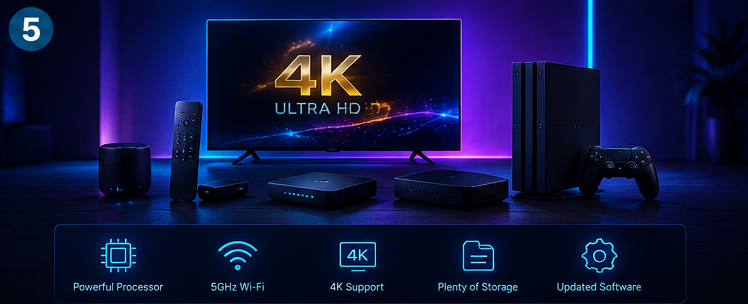
4K streaming requires more from both your network and your hardware.
For the best possible 4K experience:
- Use a stable high-speed connection.
- Prefer Ethernet when practical.
- Use a modern streaming device.
- Enable hardware decoding when supported.
- Keep your device software updated.
- Avoid heavy network activity while streaming.
- Make sure your TV and HDMI equipment support the desired resolution.
- Test several 4K channels rather than judging performance from one stream.
If your device handles Full HD perfectly but struggles with 4K, test your setup systematically before assuming the IPTV service is responsible.
Does a VPN Improve IPTV Streaming Quality?
A VPN does not automatically make IPTV faster.
In some situations, a VPN can help if a network route or local network restriction is affecting access to a legitimate streaming service.
However, a VPN can also introduce additional latency or reduce available bandwidth.
If your IPTV service already works normally, there is generally no reason to add another network layer simply for the sake of improving speed.
Test your connection normally first.
When the Problem May Be on the Service Side
Sometimes your setup is working correctly.
If:
- Your internet is stable.
- Other streaming services work normally.
- Multiple IPTV channels fail.
- Several devices have the same problem.
Then the issue may be related to the streaming service or server.
In that situation, changing every setting on your television is unlikely to solve the problem.
Check the provider's official support information or service status in our FAQ section if available.
Quick IPTV Quality Checklist
| Problem | First Thing to Check |
|---|---|
| Buffering | Internet and Wi-Fi |
| Blurry picture | Stream resolution and bitrate |
| 4K freezing | Bandwidth and device hardware |
| One channel failing | Individual stream |
| All channels failing | Network or service |
| Audio/video delay | Decoder settings |
| Slow playback | Device resources |
| Wi-Fi problems | Router position and signal |
| App problems | Update or clear cache |
| Poor picture | TV and display settings |
Frequently Asked Questions
Final Thoughts
Improving IPTV streaming quality is usually a process of identifying the weakest part of your setup.
Start with your internet connection and Wi-Fi network. Then check your IPTV player, streaming device and display settings.
If possible, test Ethernet, restart your equipment and compare several channels.
For 4K streaming, make sure both your network and hardware are capable of handling the higher workload.
Most importantly, change one setting at a time. This makes it much easier to identify what actually improves your streaming experience.
Ready to test your newly optimized setup on a premium service? Check out our flexible Pricing plans today.