IPTV Audio Out of Sync? Causes and Easy Fixes
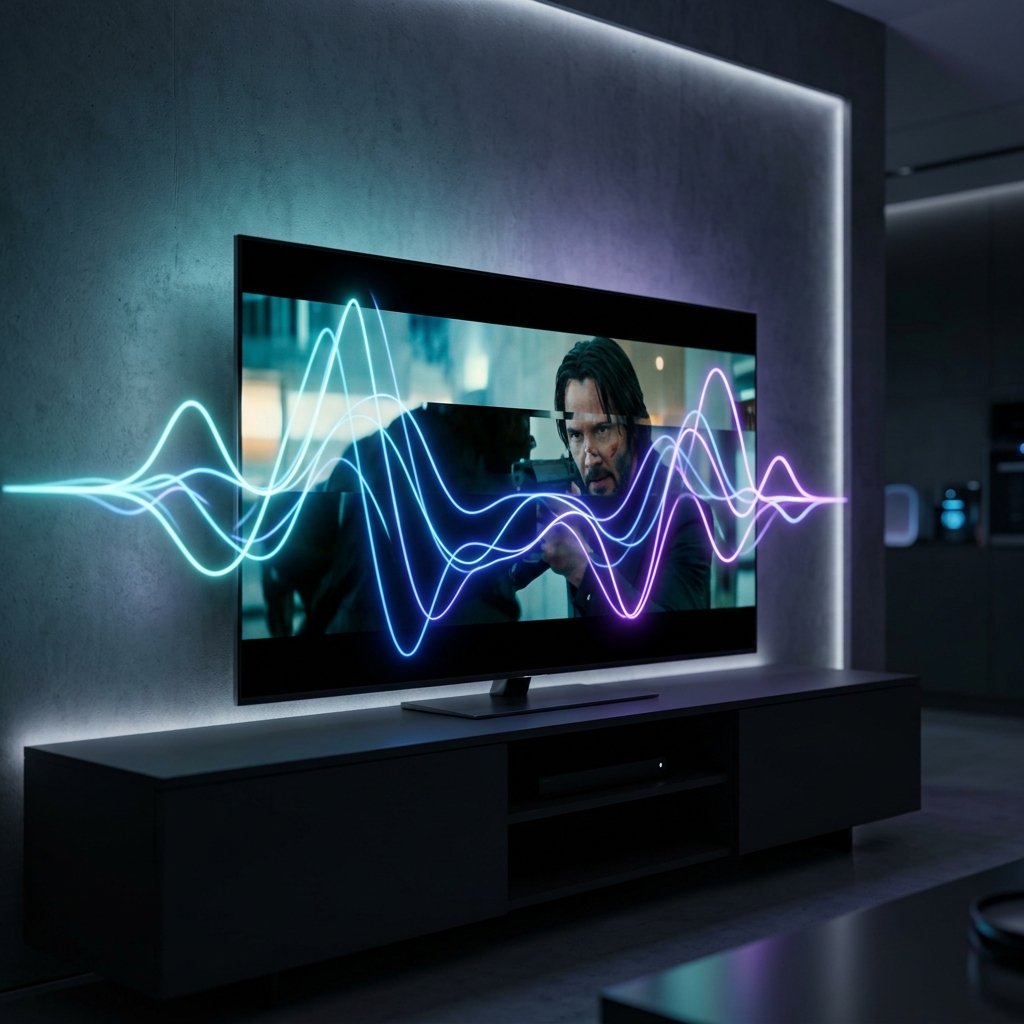
Few things are more frustrating than watching a movie, sports event or TV channel where the picture appears normally but the sound comes a second or two later.
An IPTV audio delay can make dialogue look unnatural, create problems during live sports and make the entire viewing experience uncomfortable.
The good news is that audio and video synchronization problems do not always mean that your IPTV service is broken. The cause can be your IPTV player, device, audio equipment, network connection or even the individual stream.
This guide explains the most common causes of IPTV audio being out of sync and the practical steps you can take to fix the problem.
IPTV Audio Out of SyncWhat Does IPTV Audio Out of Sync Mean?
An audio synchronization problem occurs when the sound does not match what is happening on screen.
For example, you may see a person speaking before you hear their voice.
In other cases, the audio may play slightly ahead of the video.
The difference can be very small, such as a few hundred milliseconds, or large enough to become immediately noticeable.
This problem is commonly called:
- Audio delay
- Lip-sync problem
- Audio/video synchronization issue
- AV sync problem
Understanding whether the audio is behind or ahead of the video is useful because some IPTV players allow you to manually adjust the synchronization.
1. Restart the IPTV Player
Start with the simplest solution.
Completely close your IPTV application and open it again.
Temporary playback errors can sometimes cause the audio and video tracks to become misaligned.
After restarting the application, play the same channel again and check whether the synchronization has returned to normal.
If the problem disappears after restarting but returns frequently, continue with the following troubleshooting steps.
 Restart IPTV Player App
2. Restart Your Streaming Device
If restarting the IPTV application does not help, restart the device itself.
This can apply to:
- Smart TVs
- Android TV devices
- Google TV devices
- Fire TV devices
- Android TV boxes
- Smartphones
- Tablets
- Computers
A complete restart can clear temporary software processes and playback states.
After restarting, open your IPTV player and test the same channel.
3. Check Your IPTV Player's Audio Delay Settings
Some IPTV players include an audio synchronization or audio delay option.
Depending on the application, it may appear under settings such as:
- Audio
- Playback
- Player
- Advanced settings
- Audio delay
- AV synchronization
If the audio is behind the video, a small adjustment may bring the two tracks back into sync.
Make small changes rather than moving the setting dramatically.
Test the result after every adjustment.
If the player offers both positive and negative delay values, try both directions depending on whether the audio is behind or ahead.
4. Test Another Channel
This is one of the most important troubleshooting steps.
If the audio is out of sync on only one channel, the problem may be related to that particular stream.
Try several different channels.
For example:
- News
- Sports
- Movies
- Entertainment
- International channels
If other channels play normally, your device and IPTV player may be working correctly.
The problem could be specific to the affected stream.
If every channel has the same audio delay, continue troubleshooting your device and player.
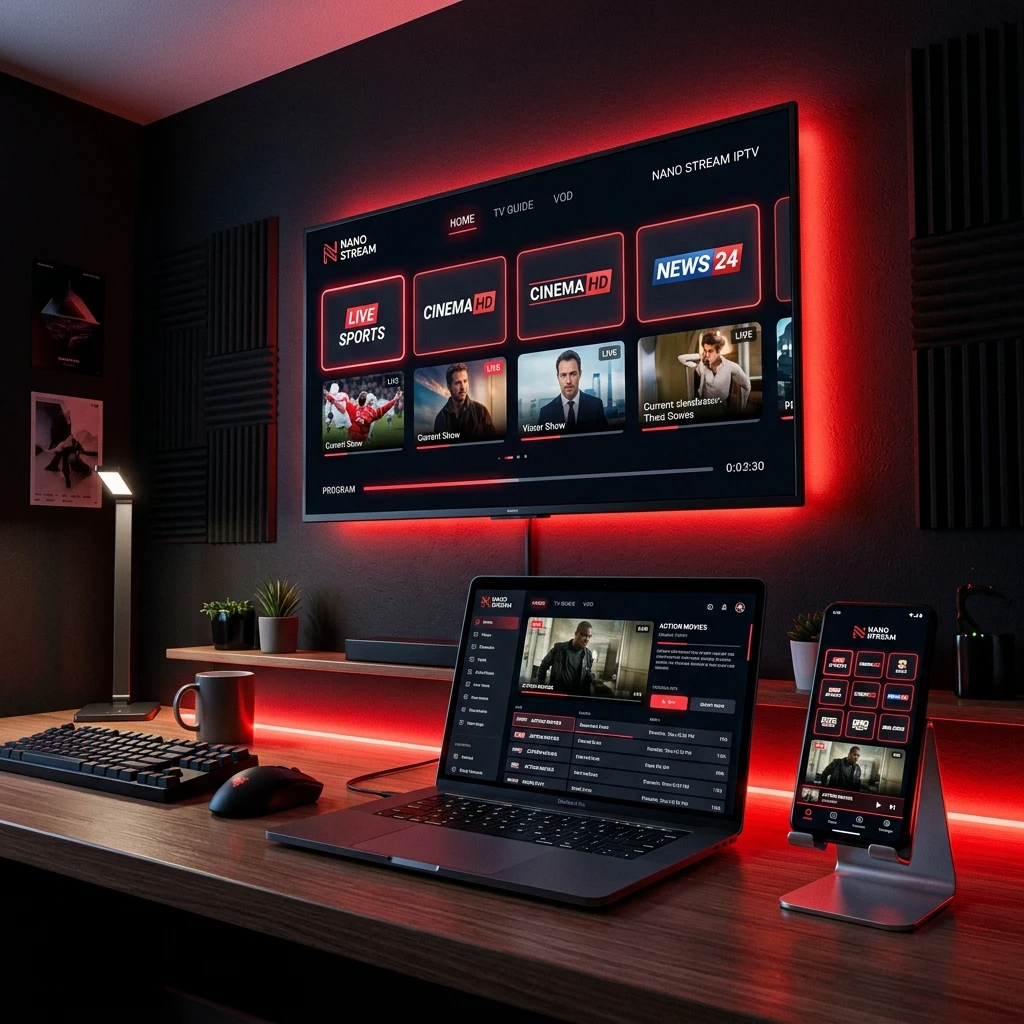 Testing IPTV Channels Grid
5. Check Your TV's Audio Settings
Your television can also introduce audio delay.
Look through your TV's sound settings for options such as:
- Audio delay
- Lip sync
- Digital audio delay
- AV sync
- Sound synchronization
If your TV has an audio delay setting enabled, it may be adding additional latency to the IPTV playback.
Try returning the setting to its default value and test the channel again.
Do not change multiple audio settings at once because this makes it difficult to identify which setting caused the problem.
6. Check Your Soundbar or External Speakers
If you use a soundbar, AV receiver or Bluetooth speaker, the external audio equipment may be responsible.
Wireless audio devices can sometimes introduce additional processing delay.
To test this, temporarily switch the TV back to its built-in speakers.
If the audio becomes synchronized when using the TV speakers, the external audio system is likely introducing the delay.
In that case, check whether your soundbar or receiver has a lip-sync or audio-delay adjustment.
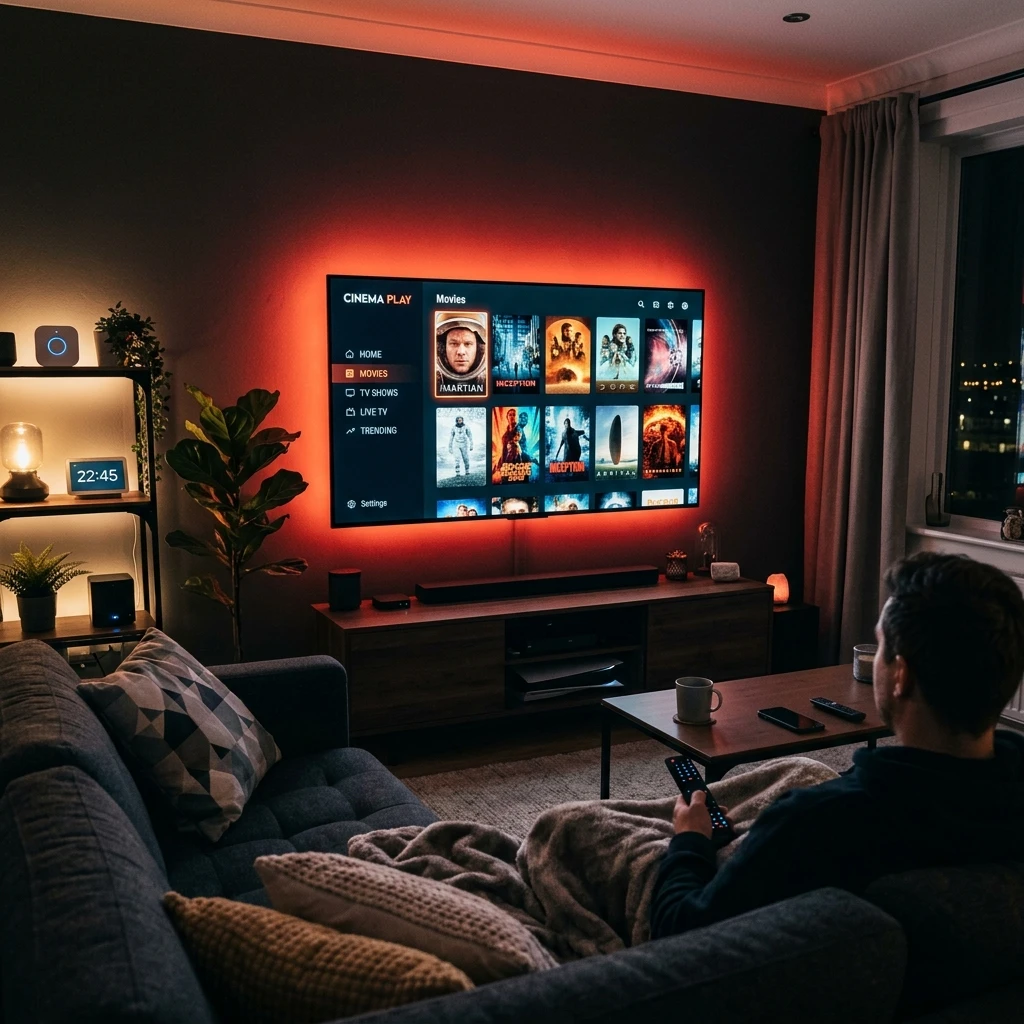 IPTV Soundbar and Speaker Setup
7. Test Hardware and Software Decoding
Some IPTV players allow you to choose between hardware and software video decoding.
The decoder controls how your device processes the video stream.
If your player provides these options, test the alternative decoding mode.
For example:
- Open the IPTV player settings.
- Find the decoder or playback settings.
- Switch from hardware decoding to software decoding.
- Test the same channel.
- If the problem remains, switch back and test the other mode.
Do not assume that one mode is always better.
The optimal setting can depend on your device, operating system and stream format.
8. Check Your Internet Connection
Audio synchronization is primarily a playback issue, but an unstable network can contribute to unusual streaming behavior.
Check whether the stream is also:
- Buffering
- Freezing
- Dropping frames
- Taking a long time to load
If you are experiencing several of these problems simultaneously, test your internet connection.
If possible, compare Wi-Fi with Ethernet.
A stable wired connection can help eliminate wireless instability as a possible cause.
9. Update Your IPTV Player
An outdated IPTV application can sometimes have compatibility problems with newer device software or playback engines.
Check whether a newer version of your IPTV player is available.
Also make sure your:
- Smart TV software
- Android TV software
- Fire TV software
- Device firmware
is up to date.
After updating, restart the device and test playback again.
 Updating Smart TV Settings
10. Clear the IPTV App Cache
If your device supports application cache management, clearing the cache can help with unusual playback behavior.
On Android-based devices, the process generally involves opening the application settings and selecting the option to clear cached data.
Be careful not to select "Clear Data" unless you have your login credentials or playlist information available.
Clearing application data can remove saved settings and account information.
IPTV Audio Is Delayed Only on Live Sports
Live sports can make synchronization problems particularly noticeable.
When watching football, basketball or other live events, even a small delay can become obvious because you may hear the crowd react before seeing the action happen.
If the problem happens only during one sports channel or event, test another channel.
If all sports channels are affected but movies and other content are synchronized, the issue may be related to the specific live streams.
IPTV Audio Is Ahead of the Video
If you hear the sound before the action happens on screen, you need to move the audio synchronization in the opposite direction from a delayed-audio situation.
Use the player's AV sync or audio delay controls if available.
Make small adjustments and test after each change.
The exact direction of the adjustment depends on how your IPTV player represents positive and negative delay values.
IPTV Audio Is Behind the Video
If you see the action first and hear the sound afterward, the audio is delayed relative to the video.
Again, use the player's audio synchronization controls if available.
If the adjustment does not work, test:
- Another channel
- Another IPTV player
- TV speakers instead of external audio
- Hardware versus software decoding
These tests can help identify where the delay is being introduced.
How to Tell Whether the Problem Is Your Device or the IPTV Stream
A simple comparison can help.
If one channel has the problem:
The stream itself may be responsible.
If every channel has the problem:
Check your player, device and audio equipment.
If the problem happens only with a soundbar:
Check the soundbar's audio processing and lip-sync settings.
If the problem happens only on one device:
Focus on that device's software and playback configuration.
If several devices have the same problem:
The issue may be related to the stream or service.
Quick IPTV Audio Sync Checklist
| Problem | What to Check |
|---|---|
| Audio behind video | Player audio delay |
| Audio ahead of video | AV sync settings |
| One channel affected | Individual stream |
| All channels affected | Player or device |
| Soundbar causes delay | Soundbar lip-sync settings |
| Bluetooth audio delay | Wireless audio device |
| Buffering + sync problems | Internet connection |
| Recent app update | Player compatibility |
| Black screen + audio | Decoder settings |
| Problem after update | Device/app configuration |
Frequently Asked Questions
Final Thoughts
An IPTV audio synchronization problem can look complicated, but it is usually possible to narrow down the cause with a few simple tests.
Start by restarting your IPTV player and device.
Then test another channel to determine whether the problem affects one stream or the entire service.
If the issue continues, check your IPTV player's audio delay and decoder settings, followed by your TV, soundbar or external audio equipment.
Finally, make sure your device and IPTV player are updated and that your internet connection is stable.
The most important troubleshooting rule is simple: change one setting at a time and test the result. This makes it much easier to identify the actual source of the problem.
Need help configuring a new device correctly? See our comprehensive Setup Guide for step-by-step instructions.