IPTV Audio Out of Sync: Causes, Diagnostics, and Complete Fixes
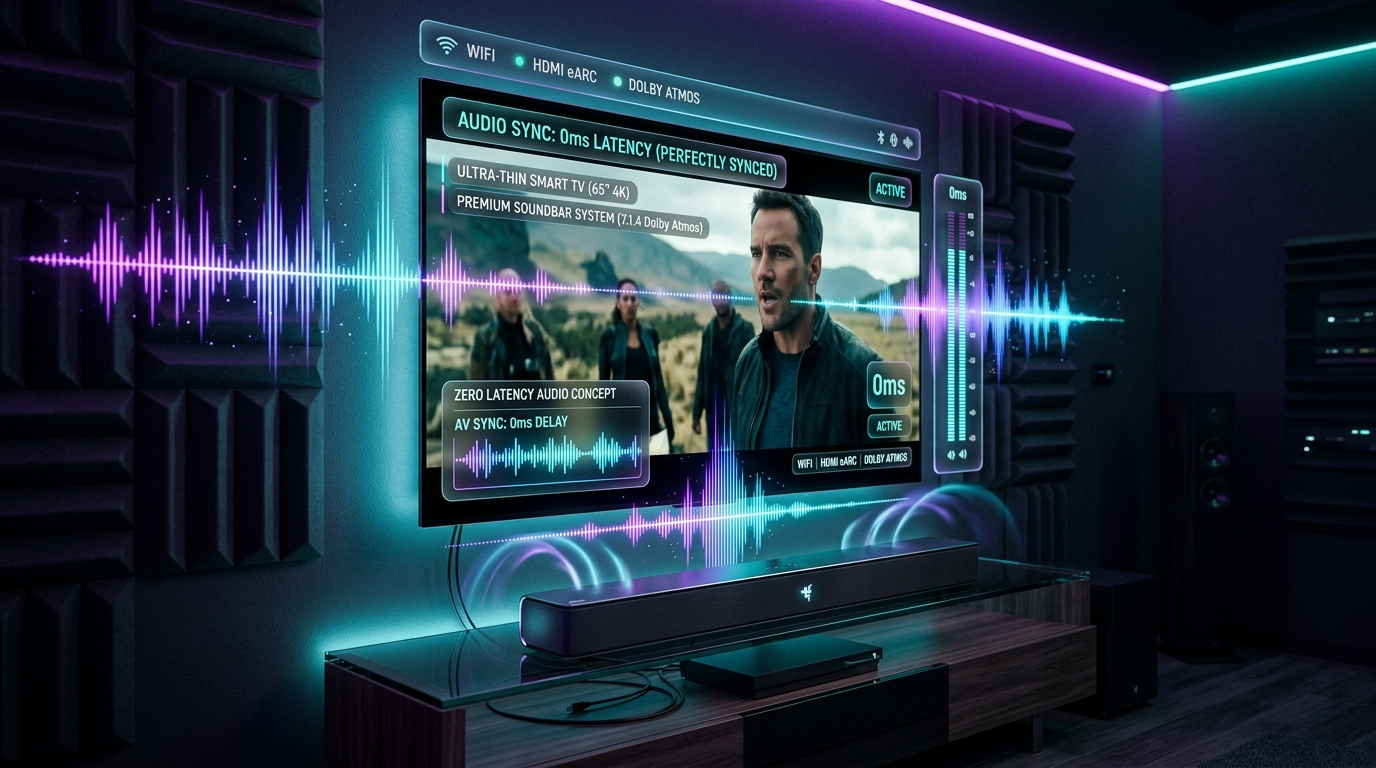
Few digital streaming problems are more distracting than audio that fails to match the on-screen video. When watching dialogue in a movie or following fast-paced live sports on Orexetv, even a minor 100-millisecond discrepancy between an actor's mouth movements and the accompanying sound breaks immersion completely. In live sporting events, hearing a football strike the goalpost half a second before the striker kicks the ball robs the broadcast of its excitement.
Audio desynchronization—often referred to as lip-sync error or AV desync—is a multifaceted issue that can originate at several points along the playback chain. It may stem from upstream broadcaster encoding errors, hardware decoding limitations inside your streaming stick, audio processing latency in modern Smart TVs, or buffering delays introduced by soundbars and Bluetooth audio peripherals.
Fortunately, audio sync issues are almost always solvable with the right diagnostic process. This comprehensive guide details the technical mechanics of AV synchronization, explains why delays occur, and provides step-by-step instructions to permanently synchronize your IPTV audio and video across all modern streaming devices.
The Technical Mechanics of AV Synchronization
To effectively diagnose audio delay, it is essential to understand how digital video and audio streams are packaged, transmitted, and decoded by media players.
[Broadcaster Encoder]
   ├── Video Elementary Stream (PTS Timestamps) ──┐
   │                                              ├──> [MPEG-TS Container] ──> [IPTV Player]
   └── Audio Elementary Stream (PTS Timestamps) ──┘                                 │
                                                                   ┌────────────────┴────────────────┐
                                                                   v                                 v
                                                            [Video Decoder]                   [Audio Decoder]
                                                            (Heavy Compute)                   (Light Compute)
                                                                   │                                 │
                                                                   └───────────────┬─────────────────┘
                                                                                   v
                                                                        [AV Sync Clock Master]
Presentation Timestamps (PTS) and Decoding Timestamps (DTS)
Digital video containers—such as MPEG-TS (.ts) or MP4/MKV files—do not transmit sound and imagery as a single unalterable track. Instead, they package audio and video into separate "elementary streams" that are multiplexed together into a single transport stream.
To ensure that frame number 1,450 appears on screen at the exact moment audio sample 44,100 plays through the speakers, the broadcaster attaches metadata known as Presentation Timestamps (PTS) to every packet:
- Decoding Timestamps (DTS): Tell the media player's hardware decoder when to unpack a compressed data packet from the buffer memory.
- Presentation Timestamps (PTS): Tell the display engine and audio digital-to-analog converter (DAC) precisely when to present that frame and sound wave to the viewer.
Under ideal conditions, the media player's internal synchronization clock reads these timestamps and aligns playback down to the millisecond. However, when packets drop, system clocks drift, or one processing pipeline experiences latency, the synchronization mechanism collapses.
Audio Ahead of Video vs. Audio Behind Video
Understanding the direction of the desynchronization is the first step toward resolving it:
- Audio Behind Video (Delayed Audio): The video plays first, and the corresponding sound arrives fractions of a second later (e.g., mouth moves, then dialogue sounds). This typically indicates heavy audio post-processing latency inside a soundbar, A/V receiver, or television digital sound engine.
- Audio Ahead of Video (Early Audio): The sound plays before the physical action occurs on screen (e.g., you hear the referee's whistle before they raise it to their lips). This almost always indicates that your streaming device's video processor is struggling with high-resolution video decoding, causing video frames to lag behind the lightweight audio stream.
1. Calibrate Player Audio Offset (The Immediate Universal Fix)
The most direct and immediate method to eliminate lip-sync discrepancies is utilizing the manual Audio Offset (Audio Delay) calibration feature integrated into top-tier IPTV players.
Media players like TiviMate, IPTV Smarters Pro, VLC Media Player, OTT Navigator, and Kodi feature precision millisecond delay sliders that allow you to advance or retard the audio timeline relative to the video feed.
How to Adjust Audio Offset in TiviMate
- While playing any live channel or movie, press the Select (OK) button on your remote to bring up the on-screen playback interface.
- Navigate down to the control bar and select the Settings (Gear icon) or Audio Track icon.
- Select Audio Delay.
- Use the left and right directional buttons on your remote to shift the timeline in 25ms or 50ms increments:
- If audio is ahead of video, adjust to +100ms to +300ms (delaying the audio).
- If audio is behind video, adjust to -100ms to -300ms (advancing the audio).
- Once dialogue perfectly matches lip movement, choose whether to apply this offset For this channel only or For all channels.
| Player Application | Menu Navigation Path | Adjustment Granularity | Scope of Setting |
|---|---|---|---|
| TiviMate | Playback Overlay > Audio Track > Audio Delay | 25 ms increments | Single channel or Global |
| IPTV Smarters Pro | Top-Right Player Settings > Audio Sync | 50 ms increments | Current session |
| VLC Media Player | Audio Menu > Audio Track Synchronization | 50 ms (or 'J' / 'K' hotkeys) | Global |
| Kodi | On-screen Display > Audio Settings > Audio Offset | 25 ms increments | Single item or System Default |
| OTT Navigator | Menu > Media Settings > Audio Sync Offset | 50 ms increments | Channel or Category |
2. Toggle Hardware vs. Software Audio Decoders
Modern IPTV streams utilize various audio encoding formats, ranging from lightweight Stereo AAC (Advanced Audio Coding) to multi-channel Dolby Digital (AC-3), Dolby Digital Plus (E-AC-3), and DTS.
If your streaming stick lacks hardware licensing or internal silicon support for a specific multi-channel codec, forcing hardware decoding can cause the audio stream to stutter, freeze, or drop out of alignment.
Hardware (HW) Audio Decoding
- How It Works: Video and audio are sent directly to the device's specialized SoC decoder chips.
- Best For: Standard stereo broadcasts, AAC audio tracks, and supported Dolby streams on certified hardware (such as Apple TV 4K, Nvidia Shield TV, or Fire TV 4K Max).
- Potential Issue: If the hardware lacks a native Dolby license, playback may fail or drift.
Software (SW) Audio Decoding
- How It Works: The player uses an integrated software library (like FFmpeg) to mathematically decode the compressed audio track using general CPU processing before converting it to raw PCM stereo.
- Best For: Complex multi-channel formats (such as 5.1 surround sound) playing through television speakers that only support 2.0 stereo.
- How to Switch: In your player's settings (e.g., Settings > Playback > Audio Decoder), switch from Hardware to Software. Software decoding often cures persistent lip-sync lag because the player decodes both streams in a unified software buffer.
3. Switch Audio Output API: AudioTrack vs. OpenSL ES (Android Devices)
If you stream on an Android TV box, Amazon Firestick, or Google TV device, your media player interacts with the Android operating system using low-level audio application programming interfaces (APIs).
Most players offer a choice between two underlying audio rendering drivers:
- AudioTrack (Standard Android API): The native high-level Android audio driver. It routes audio through the standard Android OS sound mixer. It supports system sound effects and volume normalization, but can introduce variable latency (from 40ms up to 180ms) depending on OS system load.
- OpenSL ES (Open Sound Library for Embedded Systems): A low-level, high-performance C-language audio API. OpenSL ES bypasses the standard Android operating system mixer, sending raw audio data directly to the hardware audio pipeline with ultra-low latency.
In players like TiviMate, navigate to Settings > Playback > Audio Output and test toggling between AudioTrack and OpenSL ES. Many users discover that switching to OpenSL ES permanently resolves lip-sync lag on Fire TV devices.
4. Eliminate Television Audio Post-Processing Latency
Modern Smart TVs from Samsung, LG, Sony, TCL, and Hisense are essentially high-powered computers running complex digital signal processing (DSP) algorithms. While these image and sound enhancement features look good on showroom floors, they introduce substantial processing delays.
Raw Audio Data ───> [TV Virtual Surround Filter] ───> [TV Dialogue Enhancer] ───> 120ms Latency ───> Speakers
Raw Video Data ───> [Fast Video Processor]       ───> Instant Presentation  ───> 0ms Latency   ───> Screen
                                                                                  ^
                                                                        [Lip-Sync Mismatch!]
Audio Enhancements to Disable in TV Settings
Navigate to your television's native sound settings menu (using the physical TV remote, not your streaming box remote) and disable the following post-processing filters:
- Virtual Surround / 3D Audio Processing: Faux-surround spatial sound algorithms require mathematical buffer analysis, adding 50ms to 120ms of audio delay.
- Auto Volume Leveling / Night Mode: These dynamic range compression algorithms analyze incoming audio peaks over a rolling time window, holding back sound packets and creating noticeable lag behind live video.
- Voice Clarity / Dialogue Boost: Heavy digital equalization filters introduce slight phase shifts and timing delays.
- Audio Output Mode: Change your television's digital audio output format from Auto or Dolby Digital to PCM (if using standard TV speakers) or Passthrough / Bitstream (if connected to an external soundbar or AVR).
5. Calibrate External Soundbars, A/V Receivers, and HDMI ARC/eARC
Connecting a streaming box to an external audio system introduces physical handshake variables that can desynchronize sound and picture.
HDMI ARC vs. HDMI eARC
- HDMI ARC (Audio Return Channel): An older standard with limited bandwidth (roughly 1 Mbps). ARC can introduce variable transmission delays as it negotiates multi-channel surround sound handshakes between the TV and soundbar.
- HDMI eARC (Enhanced Audio Return Channel): A modern high-bandwidth standard (up to 37 Mbps) that incorporates mandatory Auto Lip-Sync Correction. eARC continuously communicates timing metadata between your TV panel and the soundbar, adjusting timing differences automatically.
Cabling Best Practices
- Enable eARC: In your television's audio settings, ensure the HDMI audio output is set specifically to eARC, not standard ARC.
- Direct Connection to AVR: If you use a dedicated multi-channel A/V receiver, connect your streaming device directly into an HDMI Input on the Receiver, then run an HDMI output from the receiver to the TV. This ensures audio is stripped and decoded instantly with zero television passthrough latency.
- Check Physical Delay Knobs on Soundbars: Premium soundbars (Sonos, Bose, Samsung, Sony) include dedicated lip-sync adjustments inside their smartphone companion apps. If audio is delayed across all TV inputs, adjust the soundbar's internal delay slider back to 0 ms.
6. Diagnose and Solve Bluetooth Audio Latency
Using wireless Bluetooth headphones or portable speakers with a streaming device is a notorious cause of severe audio desynchronization. Standard Bluetooth protocols were never engineered for real-time video synchronization; they were designed for asynchronous music playback where millisecond timing is irrelevant.
| Bluetooth Codec | Typical Latency | Impact on Live Video & Sports |
|---|---|---|
| SBC (Standard Subband Codec) | 150 ms to 250 ms | Severe, unwatchable lip-sync delay |
| AAC (Apple Standard) | 120 ms to 200 ms | Noticeable dialogue lag |
| aptX | 60 ms to 80 ms | Tolerable for casual TV; slight lag in sports |
| aptX Low Latency (aptX-LL) | Under 40 ms | Imperceptible delay; perfectly synchronized |
| LDAC (High-Res Audio) | 150 ms to 300 ms | Severe latency unless running in performance mode |
Solutions for Wireless Audio Lag
- Verify Low-Latency Support: Ensure both your streaming box and your wireless headphones support aptX-LL or dedicated low-latency gaming modes.
- Avoid Bluetooth for Live Sports: For live football or basketball on Orexetv, use hardwired 3.5mm headphone jacks or a 2.4 GHz RF wireless headset (which connects via a USB dongle with sub-15ms latency) rather than standard Bluetooth.
- Apply Player Offset Compensation: If you must use Bluetooth headphones, apply a permanent -200ms audio offset in your media player to compensate for the wireless radio delay.
7. Match Video Refresh Rates to Prevent Buffer Clock Drift
When video frame rates and panel refresh rates conflict, media players must periodically drop or duplicate frames to maintain timing. Over 30 to 60 minutes of continuous viewing, this frame manipulation can cause the player's internal synchronization clock to drift away from the audio clock.
How Frame Rate Mismatch Causes Clock Drift
If an IPTV sports broadcast streams at 50.000 FPS (standard for European television), but your streaming stick outputs a fixed 60.000 Hz HDMI signal, the player must output 6 video frames for every 5 frames received. Over thousands of frames, subtle mathematical rounding discrepancies cause the audio and video timestamps to lose synchronization, resulting in a delay that worsens the longer you watch a channel.
Solution: Enable Auto Frame Rate (AFR)
Enable Auto Frame Rate (AFR) matching inside your IPTV player:
- In TiviMate: Settings > Playback > Auto Frame Rate (AFR) > Toggle ON.
- In Apple TV 4K: Settings > Video and Audio > Match Content > Match Frame Rate.
- In Android TV: Settings > Display & Sound > Advanced Display Settings > Match content frame rate.
When AFR is active, your television automatically switches to 50Hz, 59.94Hz, or 60Hz to match the native stream, eliminating clock drift completely.
8. Prevent Network Jitter and Audio Buffer Underruns
Audio data packets require far less bandwidth than video data packets. In a typical 1080p stream, video requires approximately 8,000 kbps, while stereo audio requires only 192 kbps.
However, when a home Wi-Fi connection encounters intermittent packet loss or high jitter (fluctuating latency), the media player's buffer behavior changes:
Incoming Stream ---> [Network Jitter / Packet Drop]
                       │
                       ├──> Video Engine: Drops dropped frames, recovers slowly
                       └──> Audio Engine: Empties buffer instantly, keeps playing continuously
                              ^
                              [Result: Audio outpaces video by 200–500ms]
When packets drop, the lightweight audio stream often recovers instantly and continues playing, while the processor-heavy video stream stalls to reconstruct missing frames. This causes the audio to skip ahead of the picture.
How to Fix Network-Induced Audio Drift
- Switch from Wi-Fi to Ethernet: Connecting your streaming device via a physical Cat6 cable eliminates packet jitter, ensuring audio and video packets arrive in perfect lockstep.
- Increase Player Buffer Size: Increase your player buffer setting from None to Medium (3 to 5 seconds). A larger buffer gives the video decoding pipeline time to process complex frames without falling behind the audio track.
- Change DNS Servers: Switching to an Anycast DNS provider (such as Cloudflare
1.1.1.1or Google8.8.8.8) ensures reliable, rapid routing to streaming edge servers.
Review our technical checklist on how to improve IPTV streaming quality for further steps on stabilizing home network connections.
9. Identify Upstream Broadcast Source Ingestion Desync
Not all audio synchronization issues originate in your living room. Occasionally, the broadcast feed ingested at the satellite downlink or distribution source contains pre-existing lip-sync errors.
How to Test for Upstream Broadcaster Errors
- Test Multiple Channels from the Same Category: Switch to three other sports or entertainment channels on Orexetv. If only one specific channel exhibits audio delay while all other channels play in perfect synchronization, the issue is an upstream source feed anomaly rather than a local hardware problem.
- Test Backup Feeds: Many premium channels offer secondary feeds (e.g., Sky Sports Main Event HD and Sky Sports Main Event 50FPS Backup). Switching to the alternative feed frequently provides an independently encoded stream with flawless sync.
- Check the Same Channel on Another Device: Launch the stream on your smartphone or computer using our IPTV installation guide. If the exact same audio delay occurs on your phone, the issue is upstream; if the phone plays perfectly, your TV or streaming stick configuration is the culprit.
Device-Specific Audio Sync Walkthroughs
Because device operating systems handle sound output differently, follow these platform-specific configuration workflows:
Amazon Fire TV Stick & Fire TV Cube
- Run the Fire TV AV Sync Tuning Tool:
- Navigate to Settings > Display & Sounds > Audio > AV Sync Tuning.
- A bouncing ball and acoustic chime will play. Follow the on-screen prompts to adjust the slider until the chime sounds at the exact instant the ball impacts the floor.
- Adjust Surround Sound Formatting:
- Navigate to Settings > Display & Sounds > Audio > Surround Sound.
- Change from Best Available to PCM or Dolby Digital (not Plus) if your television or soundbar struggles with E-AC-3 streams.
Apple TV 4K
- Wireless Audio Sync Calibration:
- Navigate to Settings > Video and Audio > Wireless Audio Sync.
- Bring an iPhone close to your television screen. The Apple TV will emit acoustic tones through your speakers, which the iPhone microphone analyzes to measure the exact millisecond delay introduced by your TV and soundbar, automatically applying system-wide latency correction.
- Audio Format Setting:
- Go to Settings > Video and Audio > Audio Format.
- Set Change Format to Convert to Dolby Digital 5.1 or Stereo if uncompressed LPCM passthrough causes lag in your receiver.
Android TV & Google TV (Nvidia Shield, Chromecast, Onn 4K)
- Device-Level Audio Delay Slider:
- Go to Settings > Display & Sound > Advanced Sound Settings > Audio Delay.
- Adjust the system slider to compensate for TV input lag across all applications.
- Digital Audio Output:
- Set digital output format to Passthrough if using an external soundbar via optical or HDMI ARC, or None / PCM if using built-in television speakers.
Advanced Deep Dive: Container Multiplexing and Stream Packetization
To master audio synchronization, one must look closely at the container architecture that wraps modern digital video. In standard web delivery, video and audio are often transmitted as separate fragmented MP4 (fMP4) files that the client browser stitches together on the fly. However, live broadcast IPTV relies predominantly on the MPEG-2 Transport Stream (MPEG-TS) standard, defined under ISO/IEC 13818-1.
How MPEG-TS Handles Audio and Video Packets
An MPEG-TS stream consists of fixed-length 188-byte packets. Within this transport multiplex, each elementary stream is assigned a unique Packet Identifier (PID):
- Program Association Table (PAT): Transmitted on PID
0x0000, the PAT acts as a directory, listing all available television programs within the transport multiplex. - Program Map Table (PMT): Specifies which PIDs carry the video elementary stream, which PIDs carry primary and secondary audio tracks (e.g., English stereo, Spanish surround), and which PIDs carry teletext or DVB subtitles.
- Program Clock Reference (PCR): Broadcast at regular intervals (typically at least once every 100 milliseconds) on a designated PID. The PCR provides a high-precision 27 MHz clock reference that the receiving media player must lock onto using a Phase-Locked Loop (PLL) circuit.
When network instability or a congested Wi-Fi router drops intermediate MPEG-TS packets, the player's internal PLL clock experiences jitter. If the PCR timestamps arrive unevenly, the player's internal clock speeds up or slows down abruptly. Because video decoding engines maintain substantial image frame buffers (often 30 to 60 frames) while audio buffers are comparatively shallow (often only 2 to 4 audio frames), this clock jitter impacts video and audio playback at different rates, resulting in progressive lip-sync divergence.
Audio Codec Comparison Matrix for IPTV Streaming
Different broadcasters and content providers package audio tracks using distinct compression algorithms. The following table provides an engineering comparison of the audio formats encountered on Orexetv:
| Audio Codec | Compression Profile | Typical Bitrate | Channel Layout | Hardware Licensing / Compatibility | Primary Use Case |
|---|---|---|---|---|---|
| AAC-LC | Advanced Audio Coding (Low Complexity) | 128 to 192 kbps | 2.0 Stereo | Universal across all mobile, TV, and web chips | Standard entertainment, news, international channels |
| HE-AAC (v1/v2) | High-Efficiency AAC (Spectral Band Replication) | 48 to 96 kbps | 2.0 Stereo / 5.1 | Supported natively by Android TV, iOS, and Fire OS | Low-bandwidth mobile streaming and satellite downlinks |
| Dolby Digital (AC-3) | ATSC A/52 Standard Broadcast Audio | 384 to 640 kbps | Up to 5.1 Discrete | Requires hardware Dolby licensing; widespread in TVs | Premium cable channels, sports feeds, and cinema |
| Dolby Digital Plus (E-AC-3) | Enhanced AC-3 with higher efficiency | 256 to 448 kbps | Up to 7.1 / Atmos | Supported on HDMI ARC/eARC; standard in 4K streaming | 4K VOD movies, premium sports, and multi-channel audio |
| DTS Digital Surround | Dedicated home theater cinema codec | 768 to 1536 kbps | 5.1 Discrete | Requires dedicated DTS decoders; often dropped by TVs | Blu-ray remuxes and high-fidelity movie soundtracks |
| PCM / LPCM | Uncompressed Pulse-Code Modulation | 1411 kbps+ | 2.0 or Multi-channel | Universal; handled natively by every audio DAC | Internal TV decoding, studio monitoring, and fallbacks |
Why Dolby Digital Plus (E-AC-3) Triggers Lip-Sync Discrepancies
E-AC-3 is the standard audio codec for modern 4K digital entertainment. However, E-AC-3 streams frequently incorporate metadata extensions such as Joint Object Coding (JOC) for Dolby Atmos spatial height audio.
When a budget streaming device (such as an entry-level Fire TV Stick Lite or older generic Android box) attempts to decode an E-AC-3 stream without a certified hardware Dolby decoder chip, it must pass the raw digital bitstream over HDMI to the television. If the television panel decodes the audio but lacks the computing power to process the Atmos metadata instantly, it introduces a 60ms to 140ms processing lag.
To cure this specific latency bottleneck:
- Open your streaming device's system sound settings.
- Change the digital audio output setting from Dolby Digital Plus to Dolby Digital (standard AC-3) or Stereo PCM.
- By forcing standard stereo PCM downmixing on the streaming box, your television receives pre-decoded audio samples that bypass internal TV signal processing buffers entirely.
The Physics of Room Acoustics: Listener Distance Delay
While hardware decoders and software buffers account for the vast majority of lip-sync errors, physical acoustics can introduce subtle timing discrepancies in large home theaters.
Sound travels through ambient room air at approximately 343 meters per second (roughly 1,125 feet per second) at standard room temperature (20°C / 68°F). In practical terms, sound requires approximately 0.88 milliseconds to travel a distance of one foot.
[TV Screen & Soundbar] =================== (12 Feet of Air) ===================> [Listener Ears]
Photons (Speed of Light: ~0 ms) ─────────────────────────────────────────────> Eyes: Instant 0 ms
Acoustic Waves (Speed of Sound: 343 m/s) ────────────────────────────────────> Ears: ~10.6 ms Latency
If your primary seating area is situated 12 feet away from a front-mounted soundbar, the acoustic waves require roughly 10.6 milliseconds to physically reach your eardrums after leaving the speaker grilles. Light, traveling at 300,000 kilometers per second, reaches your retinas virtually instantaneously.
While a 10ms acoustic delay is generally below the human perceptual threshold for lip movement (human perception typically identifies lip-sync errors once delay exceeds +45ms or -15ms), room distance stacks on top of existing electronic delays:
- Internal TV video scaling latency: +25 ms
- Soundbar DSP equalization processing: +30 ms
- Physical air transit distance (12 ft): +11 ms
- Total Combined Latency: +66 ms (Noticeable Lip-Sync Error)
By calibrating your IPTV player's manual audio offset to -60ms, you cancel out both the electronic processing overhead and the acoustic transit delay, ensuring total perceptual alignment.
Step-by-Step Audio Calibration in 7 Leading IPTV Players
Different IPTV player applications implement audio synchronization menus through distinct interfaces. Use these specific workflows to adjust your preferred client:
1. TiviMate IPTV Player (Android TV / Fire OS)
- Initiate stream playback on any live channel or movie.
- Press the OK / Select button to display the player overlay HUD.
- Select the Audio Track button (represented by a speaker or speech bubble icon).
- Navigate to Audio Delay.
- Adjust the delay slider left or right in 25ms increments.
- Long-press the Apply to all channels toggle if you wish to set this as a permanent global default across your entire Orexetv channel lineup.
2. IPTV Smarters Pro (Multi-Platform)
- During active playback, tap the screen or press the remote center button to reveal the top navigation bar.
- Select the Settings (Gear) icon located in the upper right-hand corner.
- Select Audio Output & Synchronization.
- Use the on-screen plus (+) and minus (-) controls to calibrate audio sync in 50ms increments.
- Exit the menu; IPTV Smarters will store your preference for the duration of your viewing session.
3. OTT Navigator IPTV
- Press the Menu button on your remote control during channel playback.
- Navigate to Audio / Subtitles > Advanced Audio Timing.
- Enter the numerical millisecond offset directly or use the directional d-pad to advance or retard the audio track.
- OTT Navigator allows you to bind this setting to the current channel, the entire category, or globally across the application.
4. iMPlayer TV
- Open the side-panel quick menu by pressing the Left directional button while watching full screen.
- Select the Sound Settings tab.
- Highlight Audio Sync Offset.
- Adjust the offset using the directional arrows. iMPlayer provides a real-time numerical readout displaying exact millisecond offsets.
5. Kodi (with PVR IPTV Simple Client)
- Press the Enter / Select button to summon the on-screen display (OSD).
- Select the Audio Settings (Speaker icon) in the bottom right corner.
- Navigate to Audio Offset.
- Tap the slider and adjust the timing offset.
- Scroll to the bottom of the dialogue box and click Set as default for all media to lock in the correction across all streams.
6. VLC Media Player (Android, PC, Mac)
- On Android TV / Fire TV: Open the playback controls, select the Audio options icon, choose Audio delay, and adjust using the d-pad.
- On Windows / macOS Keyboard Hotkeys: Press the J key to retard the audio by 50ms, or press the K key to advance the audio by 50ms in real time without entering any menus.
7. XCIPTV Player
- Access the on-screen playback menu.
- Select Media Controller Settings > Audio Decoder Configuration.
- Toggle from ExoPlayer to VLC Internal Player if you experience persistent lip-sync stuttering on live streams.
- Utilize the built-in audio synchronization slider to fine-tune alignment.
Sound System Architecture: Optimal Audio Cabling
The physical cabling topology connecting your streaming hardware, television, and audio gear plays a massive role in signal latency:
RECOMMENDED CONFIGURATION (Zero Latency Direct Pass):
[Streaming Box] ===(HDMI 2.1)===> [A/V Receiver / Soundbar HDMI In] ===(HDMI eARC Out)===> [Smart TV HDMI eARC In]
Audio is extracted and decoded instantly by sound hardware; video passes through to display.

SUB-OPTIMAL CONFIGURATION (Double-Processing Latency):
[Streaming Box] ===(HDMI)===> [Smart TV HDMI 1] ===(Optical / TOSLINK)===> [Soundbar]
Audio must be processed by TV, converted to S/PDIF optical stream, and re-decoded by soundbar.
If your soundbar or A/V receiver features dedicated HDMI Input ports, connect your streaming device directly into the audio unit rather than connecting it to the television first. This prevents the television's internal video processor from buffering audio packets while processing complex picture modes.
Comprehensive Troubleshooting Decision Tree
Follow this structured logical diagnostic tree to systematically pinpoint and fix any audio sync discrepancy:
                               [Audio Out of Sync Detected]
                                            │
                    ┌───────────────────────┴───────────────────────┐
                    v                                               v
        [Audio Behind Video]                             [Audio Ahead of Video]
        (Sound lags mouth movement)                     (Sound plays before action)
                    │                                               │
     ┌──────────────┴──────────────┐                 ┌──────────────┴──────────────┐
     v                             v                 v                             v
[External Audio Gear?]      [TV Speakers?]     [Video Decoding Lag]      [Network Jitter]
     │                             │                 │                             │
Disable TV post-            Disable "Auto      Switch player from        Switch from Wi-Fi
processing filters          Volume" & 3D       SW to HW decoder;         to Ethernet;
(Voice Boost, 3D Sound);    Surround; set      lower stream from 4K      increase buffer to
set eARC to Passthrough.    output to PCM.     to FHD 1080p.             Medium (3-5s).
If adjustments to local settings do not bring immediate relief, use your media player's dedicated Audio Delay Offset slider to manually align the tracks by eye and ear.
Frequently Asked Questions
Summary and Support
Audio desynchronization can ruin an otherwise pristine streaming experience, but it is almost always fixable. By systematically identifying whether audio is ahead of or behind video, disabling counterproductive television audio enhancements, switching to hardware decoders, and leveraging player millisecond audio delay sliders, you can achieve perfect lip-sync precision across every channel.
If you continue to experience chronic desynchronization across all channels and devices, your current IPTV provider may be utilizing poorly configured encoding hardware. Upgrade to Orexetv to access enterprise-grade, high-bitrate streaming infrastructure where audio and video elementary streams are multiplexed with broadcast-standard synchronization. If you need personalized guidance configuring your specific sound setup, contact our 24/7 technical team for rapid assistance.