What Internet Speed Do You Need for IPTV? Bandwidth Guide for SD, HD & 4K
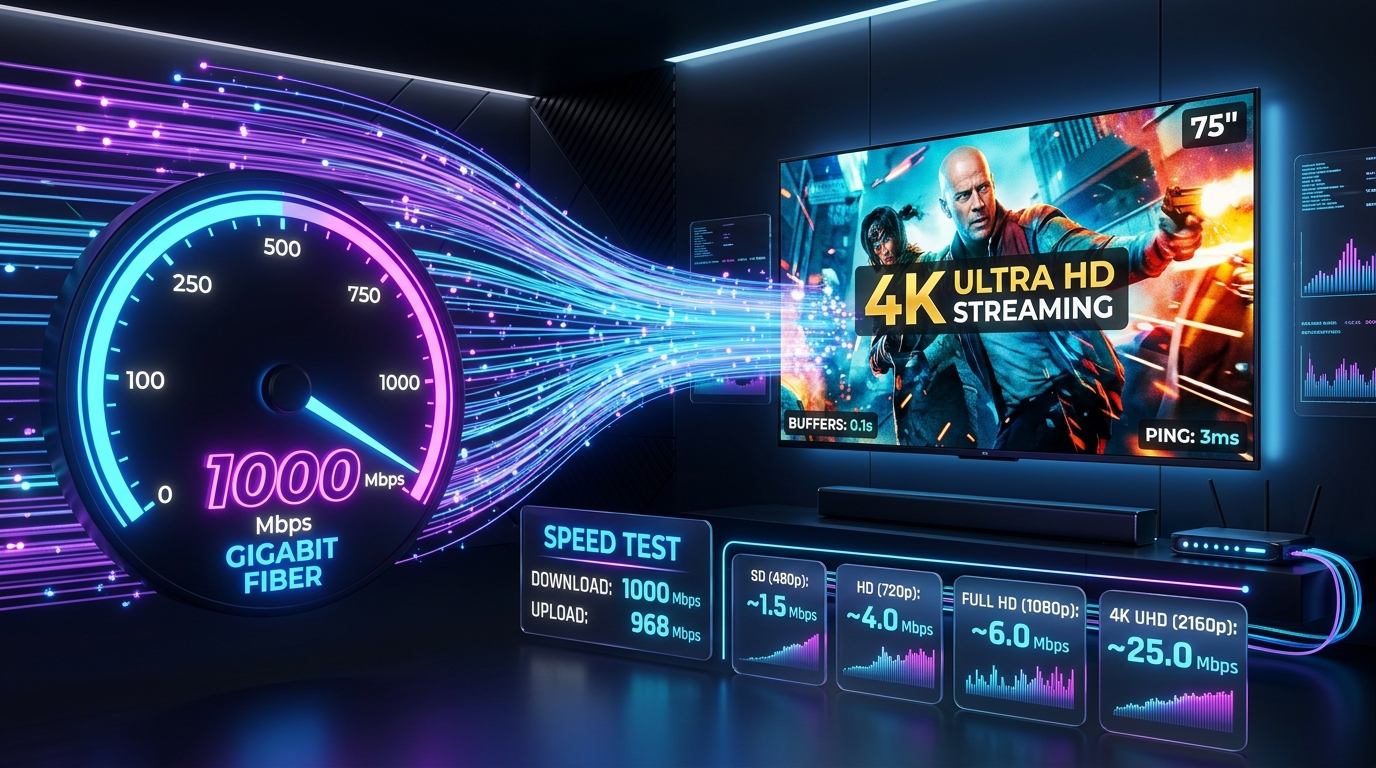
When subscribing to a modern streaming television service like Orexetv, one of the most immediate technical questions is straightforward: How fast does my internet connection actually need to be?
Broadband providers frequently market hyper-fast gigabit connections (1,000 Mbps or higher), giving consumers the impression that smooth streaming requires massive enterprise-grade bandwidth. Conversely, budget service providers often claim that a modest 10 Mbps connection is sufficient for complete home entertainment.
The reality of IPTV network engineering lies between these two extremes. While raw download speed matters, it is only one component of a healthy streaming pipeline. Connection consistency, packet loss, network jitter, routing latency, and household concurrency play an equally decisive role in whether your favorite live sports channel plays with buttery 60 FPS smoothness or freezes every thirty seconds.
This definitive technical guide breaks down the exact bandwidth requirements for SD, HD, Full HD, and 4K Ultra HD streaming, details how to calculate multi-device household capacity, benchmarks various internet connection types, and provides practical networking steps to ensure your connection delivers rock-solid playback.
The Crucial Difference: Raw Speed vs. Connection Stability
To understand why some connections buffer despite high speed-test numbers, it is essential to distinguish between bandwidth and stability.
Connection A (High Bandwidth / Low Stability):
Bandwidth: 300 Mbps | Jitter: 45ms | Packet Loss: 2.5%
[Packet] ────X──── [Packet] ────X──── [Retry] ────> Constant Buffering!

Connection B (Moderate Bandwidth / High Stability - IDEAL):
Bandwidth: 40 Mbps  | Jitter: 1ms  | Packet Loss: 0.0%
[Packet] ───────── [Packet] ───────── [Packet] ───> Flawless 4K 60FPS Playback!
Why Speed Tests Can Be Deceptive
When you run a standard web-based speed test, the testing tool initiates multiple simultaneous TCP connections (often 8 to 16 parallel threads) to a local server hosted by your ISP. This multi-threaded approach is designed to saturate your connection and display the theoretical maximum throughput of your line.
However, live IPTV does not operate over parallel multi-threaded burst transfers. Live streaming is a continuous, sequential, single-threaded flow of audiovisual data packets that must arrive in strict chronological sequence. If your line drops even 1% of incoming packets or encounters fluctuating latency (jitter), your streaming device's buffer empties instantly, causing the video to pause and spin—even if your speed test happily reports 300 Mbps.
The Three Pillars of Network Health for IPTV
To evaluate whether your internet connection is truly ready for seamless streaming, you must audit three distinct network metrics:
                      THE IPTV NETWORK HEALTH TRIAD
                                    ▲
                                   / \
                                  /   \
                                 /     \
                                /       \
          [BANDWIDTH] ◄─────────         ─────────► [LATENCY & PING]
     (Megabits Per Second)                       (Round-Trip Time < 40ms)
                                 \     /
                                  \   /
                                   \ /
                                    ▼
                          [JITTER & PACKET LOSS]
                         (Jitter < 5ms | Loss: 0.0%)
1. Dedicated Bandwidth (Throughput in Mbps)
This is the physical volume of data your connection can receive per second, measured in Megabits per second (Mbps). Each video stream requires a dedicated slice of bandwidth. If your stream requires 18 Mbps and your connection drops to 14 Mbps during peak hours, playback stalls.
2. Latency and Ping (Round-Trip Time)
Ping represents the time (measured in milliseconds) required for a data packet to travel from your streaming device to the IPTV streaming server and back.
- Ideal for IPTV: Under 30 ms.
- Acceptable: 30 ms to 70 ms.
- Problematic: Over 100 ms (leads to channel zapping delays and connection timeouts).
3. Jitter and Packet Loss (The Buffer Killers)
- Jitter: The statistical variation in latency over time. If one packet arrives in 15ms and the next packet takes 95ms, the arrival rate fluctuates wildly. High jitter forces the media player's buffer to run dry. Jitter for smooth streaming should be under 5 ms.
- Packet Loss: The percentage of data packets that are destroyed or lost in transit across the public internet or local Wi-Fi. For live IPTV, packet loss must be 0.0%. Even a minor packet loss of 0.5% causes visible macro-blocking, audio chirps, and stream freezing.
Bandwidth Requirements by Resolution Profile
Different video resolution profiles require varying amounts of continuous bandwidth. The following table provides an engineering benchmark of actual data rates across standard broadcast formats on Orexetv:
| Resolution Profile | Pixel Dimensions | Frame Rate (FPS) | Video Codec | Native Stream Bitrate | Recommended Dedicated Speed |
|---|---|---|---|---|---|
| Standard Definition (SD) | 720×480 / 720×576 | 25 / 30 FPS | H.264 / MPEG-2 | 1.5 to 3.0 Mbps | 5 Mbps |
| High Definition (HD) | 1280×720 (720p) | 50 / 60 FPS | H.264 / H.265 | 4.0 to 6.0 Mbps | 10 Mbps |
| Full HD (FHD) | 1920×1080 (1080p) | 25 / 30 FPS | H.264 / H.265 | 6.0 to 9.0 Mbps | 15 Mbps |
| Full HD Sports (FHD 60) | 1920×1080 (1080p) | 50 / 60 FPS | H.265 (HEVC) | 10.0 to 16.0 Mbps | 25 Mbps |
| 4K Ultra HD (UHD) | 3840×2160 (2160p) | 50 / 60 FPS HDR | H.265 / AV1 | 18.0 to 28.0 Mbps | 40 Mbps |
Why 4K 60FPS Sports Demand Significant Headroom
A static 4K movie scene (such as two actors conversing in a dimly lit room) requires relatively little data because subsequent frames are largely identical; modern video codecs compress static backgrounds efficiently.
However, a live 4K 60FPS Premier League or NFL broadcast on Orexetv represents a massive data challenge:
- Sixty completely unique full-frame images are transmitted every second.
- Thousands of dynamic stadium spectators, rapid grass texture pans, and fast-moving balls create complex visual entropy that prevents aggressive video compression.
- Peak bitrates during intense action frequently surge from 20 Mbps to 35 Mbps in fractions of a second.
For this reason, a 4K live sports stream requires a dedicated, uncontended speed allocation of at least 35 to 40 Mbps to absorb instantaneous bitrate spikes without depleting the media player's buffer.
The "Buffer Multiplier Formula": Calculating Household Bandwidth
When planning your internet tier, you cannot simply calculate the speed needed for a single television. In a modern connected household, numerous devices and users compete for available bandwidth simultaneously.
                       THE BUFFER MULTIPLIER FORMULA
Total Bandwidth Needed = (N_Streams × S_Speed × 1.5) + Background_Household_Load
Where:
N_Streams= Number of simultaneous active streaming devices.S_Speed= Target streaming profile speed (e.g., 25 Mbps for 1080p 60FPS; 40 Mbps for 4K).1.5= The Headroom Safety Multiplier (provides a 50% buffer to absorb peak-hour network jitter and packet bursts).Background_Household_Load= Bandwidth consumed by background cloud backups, smartphone downloads, gaming, and remote work.
Real-World Household Concurrency Scenarios
Scenario 1: The Single Viewer (Apartment / Dorm)
- 1 active 4K Ultra HD stream: 40 Mbps × 1.5 = 60 Mbps
- Background smartphone messaging and web browsing: 10 Mbps
- Recommended Internet Tier: 75 Mbps to 100 Mbps
Scenario 2: The Family Home (Multi-Room Streaming)
- 1 Living Room 4K Sports stream: 40 Mbps × 1.5 = 60 Mbps
- 2 Bedroom 1080p Full HD streams: (2 × 20 Mbps) × 1.5 = 60 Mbps
- 1 Person working remotely (Zoom video call + cloud uploads): 25 Mbps
- Connected smart home devices (cameras, smart speakers): 15 Mbps
- Recommended Internet Tier: 160 Mbps to 200 Mbps
Scenario 3: High-Density Streaming Household (Heavy Power Users)
- 2 Concurrent 4K streams: (2 × 40 Mbps) × 1.5 = 120 Mbps
- 2 Full HD streams: (2 × 20 Mbps) × 1.5 = 60 Mbps
- Competitive online gaming (requires strict low latency): 30 Mbps
- Active torrent or game console downloads (Steam, PS5): 100 Mbps
- Recommended Internet Tier: 300 Mbps to 500 Mbps
Connection Technologies Compared for IPTV
Not all internet delivery mediums are created equal. The physical infrastructure carrying data from your service provider to your home dramatically influences streaming stability:
Connection Reliability Tier List for IPTV Streaming:
[S-Tier: Pure Fiber (FTTH)]    ───> Latency: 2-8ms   | Jitter: 0.5ms | Packet Loss: 0.0%  (FLAWLESS)
[A-Tier: Cable (DOCSIS 3.1)]   ───> Latency: 15-28ms | Jitter: 3.5ms | Packet Loss: 0.1%  (EXCELLENT)
[B-Tier: 5G Fixed Wireless]    ───> Latency: 30-55ms | Jitter: 12ms  | Packet Loss: 0.8%  (VARIABLE)
[C-Tier: VDSL Copper Phone]    ───> Latency: 25-45ms | Jitter: 8ms   | Packet Loss: 0.4%  (DEPENDS ON DISTANCE)
[D-Tier: LEO Satellite (Starlink)]─>Latency: 35-65ms | Jitter: 18ms  | Packet Loss: 1.2%  (NEEDS LARGE BUFFER)
1. Pure Fiber-to-the-Home (FTTH / GPON)
- Architecture: 100% glass optical fiber cables running directly into your home.
- Performance: Symmetrical download and upload speeds, ultra-low latency (sub-10ms), and virtually zero packet loss.
- IPTV Verdict: The gold standard. A 50 Mbps fiber connection will provide a vastly more stable IPTV experience than a 500 Mbps copper or wireless connection.
2. Hybrid Fiber-Coaxial Cable (DOCSIS 3.0 / 3.1)
- Architecture: Fiber optic backbone with copper coaxial cabling running the final neighborhood mile.
- Performance: Asymmetrical speeds (e.g., 300 Mbps download, 20 Mbps upload). Generally reliable, but can experience evening latency spikes when neighborhood usage peaks.
- IPTV Verdict: Excellent. Highly recommended, provided your local node is not chronically over-subscribed.
3. 5G and 4G Fixed Wireless Access (FWA)
- Architecture: Cellular radio transmission from a nearby cellular base station to a 5G home gateway modem.
- Performance: Speeds fluctuate heavily based on weather, cell tower load, and physical line-of-sight obstacles. High peak speeds (100–300 Mbps), but notable jitter.
- IPTV Verdict: Viable with optimization. Requires configuring a Large Buffer (5 to 8 seconds) in your IPTV player to absorb wireless cell breathing and packet jitter.
4. Low Earth Orbit Satellite (Starlink)
- Architecture: Phased-array satellite dish communicating with orbital satellite constellations.
- Performance: Substantial improvement over legacy geostationary satellite (HughesNet), offering 50–150 Mbps download speeds with 35–60ms latency.
- IPTV Verdict: Good for rural areas. Intermittent satellite handoffs can cause momentary micro-drops; setting your media player buffer to Large (8 to 10 seconds) is mandatory for smooth live sports.
Mobile Data Consumption: Streaming on Cellular Connections
If you stream on mobile devices or use cellular hotspot data while traveling, monitoring bandwidth consumption is critical to avoid exhausting data caps.
Monthly Data Consumption at 3 Hours of Daily Viewing:
SD (480p):      ~81 GB / Month
HD (720p 60):   ~243 GB / Month
Full HD (1080p):~378 GB / Month
4K Ultra HD:    ~945 GB / Month (Approaching standard ISP data caps!)
| Quality Tier | Hourly Data Usage (Gigabytes) | Daily Usage (3 Hours Viewing) | Monthly Usage (3 Hours/Day) |
|---|---|---|---|
| Low / SD (480p) | 0.7 to 1.1 GB / hr | ~2.7 GB / day | ~81 GB / month |
| Medium / HD (720p 60) | 2.0 to 3.2 GB / hr | ~8.1 GB / day | ~243 GB / month |
| High / FHD (1080p 60) | 3.5 to 5.0 GB / hr | ~12.6 GB / day | ~378 GB / month |
| Ultra / 4K UHD (2160p) | 8.0 to 14.0 GB / hr | ~31.5 GB / day | ~945 GB / month |
If your mobile plan or domestic home broadband has a strict monthly data cap (such as a 1.2 Terabyte limit), streaming multiple 4K sports channels every evening can quickly exhaust your allocation. In such scenarios, configuring your media player to default to 1080p Full HD at 60 FPS provides an outstanding visual balance while cutting total data consumption in half.
How to Accurately Test Your Connection for IPTV
Standard browser speed tests can be misleading. Follow this advanced diagnostic protocol to measure your connection's true streaming capability:
Step 1: Run Speedtest.net ───> Multi-Threaded Burst (Measures Headline ISP Capacity)
Step 2: Run Fast.com ────────> Netflix CDN Transit (Checks for Video Protocol Throttling)
Step 3: Run Cloudflare Test ─> Measures Jitter, Packet Loss, and Bufferbloat Under Load
1. Perform a Single-Threaded Test
In applications like Speedtest.net, click the settings icon and toggle connection mode from Multi to Single. A single-threaded test accurately mirrors the delivery mechanics of an IPTV stream, revealing whether a single sequential pipe can sustain high bitrates.
2. Test Against Video CDNs (Fast.com)
Navigate to Fast.com on your streaming device. Fast.com pulls data directly from Netflix media distribution servers. Because ISPs often prioritize standard web traffic while throttling media protocols, comparing your standard speed test with Fast.com reveals whether your provider is artificially choking video streams.
3. Measure Bufferbloat with Cloudflare Speed Test
Visit speed.cloudflare.com. This diagnostic utility runs tests across various packet sizes (from 100 KB up to 25 MB), reporting detailed metrics for Jitter, Packet Loss, and Latency Under Load. If your latency under load spikes above 100ms, your router is suffering from bufferbloat and needs Quality of Service (QoS) optimization.
If you encounter persistent buffering during tests, consult our comprehensive guide on how to fix IPTV buffering.
Optimizing Router Settings to Maximize Available Speed
If your speed test indicates that your raw bandwidth is sufficient but playback remains erratic, optimize these crucial router parameters:
1. Implement Smart Queue Management (SQM) / QoS
Bufferbloat occurs when an upload saturates your modem's outbound queue, causing incoming video packets to be delayed. Enabling Smart Queue Management (SQM)—using algorithms like FQ-CoDel or CAKE—dynamically manages packet queues, ensuring real-time video packets bypass large background file transfers instantly.
2. Switch to Low-Latency Anycast DNS
Default ISP Domain Name System servers can add 50ms to 100ms of overhead to every stream initialization request. Switching your router's primary DNS to a modern Anycast resolver dramatically reduces channel zapping times:
- Cloudflare DNS:
1.1.1.1and1.0.0.1 - Google DNS:
8.8.8.8and8.8.4.4 - Quad9 DNS:
9.9.9.9and149.112.112.112
3. Verify Maximum Transmission Unit (MTU) Sizing
The MTU represents the maximum packet size that can pass across your network interface without fragmentation.
- Standard Ethernet connections use an MTU of 1500.
- DSL and PPPoE connections typically require an MTU of 1492. If your router's MTU is set too high, packets must be fragmented into smaller pieces, increasing packet overhead, router CPU load, and stream latency.
Review our technical manual on how to improve IPTV streaming quality for further steps on tuning local network hardware.
Wi-Fi vs. Ethernet: The Speed Delivery Reality
Many users pay for a 300 Mbps fiber connection, place their streaming TV in a bedroom three walls away from the router, and wonder why 4K IPTV buffers.
Modem/Router (Living Room): 500 Mbps Fiber
├── Hardwired Cat6 to Living Room TV ──> 500 Mbps | 0ms Jitter | 0% Loss [FLAWLESS 4K]
└── Wi-Fi through 2 Drywall Studs ─────> Bedroom TV: 22 Mbps | 42ms Jitter | 2.1% Loss [BUFFERING]
The transmission medium degrades effective bandwidth dramatically:
- 2.4 GHz Wi-Fi: Real-world effective throughput rarely exceeds 25 to 40 Mbps due to background interference from home appliances, Bluetooth devices, and neighboring networks.
- 5 GHz Wi-Fi: Delivers impressive speeds (150–400 Mbps) in open space, but 5 GHz radio waves struggle to penetrate solid brick, concrete, or dense drywall, resulting in rapid signal attenuation and packet loss over distance.
- Cat6 Ethernet: Delivers full line-speed bandwidth (up to 1,000 Mbps) over distances up to 100 meters, with zero radio interference, zero jitter, and zero packet loss.
If running physical Ethernet through your home is impractical, installing a Multimedia over Coax (MoCA) adapter or a dedicated Wi-Fi 6 Mesh System (with a dedicated wireless backhaul channel) provides the stable throughput required for multi-room 4K streaming.
Advanced Network Engineering: TCP vs. UDP and BBR Congestion Control
To truly understand how internet speed translates into smooth video playback, we must examine the underlying Layer 4 transport protocols that govern data transmission across the public internet.
TCP Stream Transmission (With ACKs & Retransmissions):
[Server] ───(Packet 1)───> [Device]
[Server] <───(ACK 1)────── [Device]
[Server] ───(Packet 2 Dropped!)───X (Delay!)
[Server] <───(Resend Request)───── [Device]
[Server] ───(Packet 2 Resent)────> [Device] ───> Intermittent Buffer Jitter!

UDP / RTP Stream Transmission (Fire-and-Forget):
[Server] ───(Packet 1)───> [Device]
[Server] ───(Packet 2)───> [Device]
[Server] ───(Packet 3)───> [Device] ───> Zero ACK Latency, but requires clean line!
TCP (Transmission Control Protocol) in Modern IPTV
The vast majority of modern consumer IPTV delivery—whether through HLS (.m3u8) or HTTP-based Xtream Codes API connections—operates over TCP (Transmission Control Protocol).
TCP is a connection-oriented protocol that guarantees delivery. Every group of packets sent by the server must be confirmed with an Acknowledgment (ACK) packet from your streaming box. If your connection drops a packet, TCP pauses the stream and retransmits the missing data.
While this ensures zero data corruption, it introduces a major speed bottleneck: the TCP Receive Window (RWIN). If latency is high (e.g., 90ms ping to a remote server), your streaming device must wait for confirmation before requesting the next block of video data. This mathematical relationship—known as the Bandwidth-Delay Product (BDP)—limits maximum single-stream throughput:
Maximum TCP Throughput = TCP Window Size / Round-Trip Time (Latency)
If your ISP's routing introduces 100ms latency, a standard 64 KB TCP window can physically transmit only around 5.2 Mbps of data—even if your physical internet connection is 500 Mbps! This mathematical reality explains why high-latency connections constantly buffer when attempting to stream 15 Mbps Full HD or 25 Mbps 4K feeds.
The BBR (Bottleneck Bandwidth and RTT) Revolution
To combat this limitation, modern high-performance IPTV networks like Orexetv deploy BBR (Bottleneck Bandwidth and RTT) congestion control algorithms on their streaming servers.
Developed by Google engineers, BBR does not wait for packet loss to gauge network capacity (unlike legacy Cubic or Reno algorithms). Instead, BBR continuously measures actual throughput and round-trip propagation time, maintaining maximum delivery speed even on connections that experience minor packet drop or moderate latency.
The Hidden Hardware Bottleneck: The 100 Mbps Smart TV Port
One of the most astonishing hardware realities in modern home entertainment is that almost all 4K Smart TVs sold today—including flagship models from Samsung, LG, Sony, and TCL—feature 100 Mbps Ethernet ports (Fast Ethernet) rather than Gigabit Ethernet (1,000 Mbps).
Home Router: 1,000 Mbps Gigabit LAN
      │
      ├── Cat6 Cable (Rated for 1,000 Mbps)
      │
      v
[Smart TV Ethernet Port: HARDWARE CAPPED AT 100 Mbps]
Maximum Real-World Throughput: ~85 to 92 Mbps due to TCP/IP packet overhead!
While 85 Mbps of effective throughput is sufficient for standard 4K streaming, it leaves relatively little headroom when processing high-bitrate bursts, raw uncompressed audio, or multiple background app updates. Furthermore, the low-cost network interface cards (NICs) integrated into television motherboards often feature minimal buffer memory, causing packet drops when handling high-speed data streams.
The Solution: USB Gigabit Ethernet Adapters
If your Smart TV runs Android TV or Google TV (such as Sony Bravia, TCL, or Philips), you can bypass the slow 100 Mbps internal port:
- Purchase an inexpensive USB 3.0 to Gigabit Ethernet adapter (powered by the Realtek RTL8153 chipset).
- Plug the adapter into a high-speed USB port on your television.
- Connect your Cat6 Ethernet cable to the adapter.
- Your television will automatically recognize the gigabit adapter, boosting wired network throughput from 85 Mbps to over 350 Mbps, completely eliminating local interface saturation.
Deep In-Home Wi-Fi Optimization: Channel Widths and RSSI Metrics
If connecting via physical Ethernet is completely impossible, you must optimize your wireless physical layer to achieve the stability required for live streaming.
Demystifying Channel Widths (20 MHz vs. 40 MHz vs. 80 MHz vs. 160 MHz)
In your router's advanced 5 GHz wireless configuration, you will find settings for Channel Width:
- 20 MHz Width: Narrow spectrum pipe. Low maximum throughput (~86 Mbps), but exceptional range and minimal interference susceptibility. Suitable only for low-bitrate SD/HD streams.
- 40 MHz Width: Balanced throughput (~200 Mbps) with moderate range. Good for medium-sized homes with several drywall barriers.
- 80 MHz Width [RECOMMENDED FOR 4K IPTV]: High throughput (~433 to 866 Mbps). Provides the wide data pipe necessary to transmit high-bitrate 4K 60FPS video bursts with minimal packet queuing delay.
- 160 MHz Width: Maximum throughput (up to 1,733 Mbps on Wi-Fi 6). However, 160 MHz channels overlap with Dynamic Frequency Selection (DFS) radar frequencies. If an airport or weather radar signal is detected, your router will abruptly drop the channel, causing a sudden 30-second streaming blackout.
Monitoring RSSI Signal Strength
Signal bars on your streaming device's screen are purely decorative. To accurately assess whether your device receives sufficient wireless power for high-bitrate video, check the Received Signal Strength Indicator (RSSI), measured in negative decibel-milliwatts (-dBm):
RSSI Signal Strength Hierarchy for IPTV Streaming:
-30 dBm to -50 dBm: [EXCEPTIONAL] ──> Maximum line speed, zero wireless loss, pristine 4K.
-51 dBm to -65 dBm: [VERY GOOD]   ──> Stable for 1080p 60FPS and 4K streaming.
-66 dBm to -75 dBm: [MARGINAL]    ──> Occasional micro-stutter; buffer increases required.
-76 dBm or worse:   [UNACCEPTABLE]──> Constant packet loss, frequent disconnects, chronic buffering.
If your streaming device reports an RSSI weaker than -65 dBm, you must move your router closer, elevate the router off the floor, or install a dedicated wired access point to restore signal fidelity.
ISP Peering, Tier 1 Transit, and Global CDN Architecture
Your broadband speed test measures data traveling to a server hosted just a few miles away inside your city. However, your IPTV stream may originate on an enterprise media server located in London, Frankfurt, New York, or Amsterdam.
The path between that streaming server and your television spans multiple international network layers:
[IPTV Master Broadcast Encoder]
              │
              v
[Tier 1 Global Transit Providers] (Lumen, Cogent, Telia, NTT Backbone)
              │
              v
[Internet Exchange Points - IXPs] (DE-CIX, LINX, AMS-IX)
              │
              v
[Your Domestic ISP's Core Gateway]
              │
              v
[Last-Mile Fiber/Copper Cable to Your House]
If your domestic ISP has poor "peering agreements"—meaning they refuse to invest in direct high-capacity interconnects at international Internet Exchange Points—your streaming data must travel through congested third-party transit routes.
This causes latency to spike and packets to drop during peak evening hours, even though your local neighborhood line has plenty of bandwidth. In such scenarios, using an encrypted tunnel can route your connection through an alternative Tier 1 backbone, bypassing your ISP's congested transit bottlenecks entirely.
Review our technical guide on Xtream Codes vs M3U to understand how different playlist protocols interact with server routing infrastructure.
Comprehensive Household Bandwidth Planning Matrix
Use this quick-reference planning table to determine the ideal internet subscription speed for your household size and viewing preferences:
| Household Size | Active Streaming Devices | Other Online Activities | Minimum Speed Required | Recommended Internet Tier |
|---|---|---|---|---|
| 1 Person | 1 Device (HD 1080p) | Casual social media, email | 15 Mbps | 30 to 50 Mbps |
| 1–2 People | 1 Device (4K Ultra HD) | Web browsing, light video calls | 35 Mbps | 75 to 100 Mbps |
| 2–3 People | 2 Devices (1× 4K, 1× FHD) | Video conferencing, streaming music | 65 Mbps | 150 to 200 Mbps |
| 3–4 People | 3 Devices (2× 4K, 1× FHD) | Online gaming, cloud backups | 110 Mbps | 250 to 300 Mbps |
| 4+ People (Power Users) | 4+ Devices (Concurrent 4K) | Large game downloads, heavy remote work | 180 Mbps | 500 Mbps to 1 Gbps |
Frequently Asked Questions
Summary and Next Steps
Evaluating internet speed for IPTV requires looking beyond headline marketing numbers. While a single Full HD stream requires 15 Mbps and a pristine 4K 60FPS feed requires 35 to 40 Mbps, maintaining near-zero packet loss, low jitter, and adequate household concurrency headroom is what guarantees uninterrupted entertainment.
If your connection meets these speed parameters yet your current provider continues to stutter and freeze, the bottleneck is almost certainly in the provider's server infrastructure. Upgrade to Orexetv to access enterprise-grade high-bitrate streaming powered by multi-redundant global CDN clusters. Explore our full channel lineup or contact our technical support team for personalized network setup advice.