How to Fix IPTV Buffering on Smart TV, Firestick and Android TV
Few things are more frustrating than sitting down to watch a live match, movie or TV channel and seeing the same loading circle appear every few minutes.
IPTV buffering can happen on almost any device, including Smart TVs, Firestick devices and Android TV boxes.
The important thing is not to immediately assume that your IPTV service is the problem.
Buffering can come from several different places: your Wi-Fi connection, router, streaming device, IPTV player, video settings or the server delivering the stream.
This guide explains how to identify the cause and fix IPTV buffering step by step.
Smart TV experiencing IPTV buffering during streaming
Why Does IPTV Keep Buffering?
IPTV buffering happens when the device cannot receive or process enough video data to keep playback running continuously.
Common causes include:
- Weak or unstable Wi-Fi
- Network congestion
- Poor router placement
- Device performance limitations
- Too much cached data
- Incorrect player settings
- Outdated applications
- Video decoding problems
- Overloaded streaming servers
- Problems affecting a specific channel or stream
The best approach is to identify the pattern first instead of changing several settings at the same time.
1. Test Your Internet Connection on the Streaming Device
One of the first things to check is your actual connection speed on the device that is buffering.
Do not rely only on a speed test performed on your phone or laptop.
Your Smart TV, Firestick or Android TV box may have a weaker Wi-Fi connection than another device in the same room.
Run a speed test directly on the streaming device if possible.
Also pay attention to stability, not just the headline download speed.
A connection that repeatedly drops or suffers from high latency can cause buffering even when the advertised internet speed is high.
For reference, many HD streams can work with relatively modest bandwidth, while 4K streams require substantially more capacity. The exact requirement depends on the stream bitrate and encoding.
2. Switch from Wi-Fi to Ethernet
If your device supports Ethernet, try a wired connection.
Ethernet removes many of the variables associated with Wi-Fi, including interference, signal strength and wireless congestion.
This is particularly useful when:
- The router is far from the TV
- Several walls separate the router and device
- Many devices use the same Wi-Fi network
- Buffering happens randomly
- Streaming becomes worse during busy periods
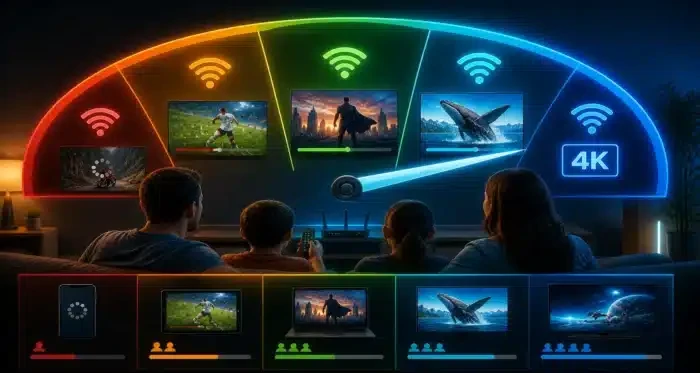 Internet connection and Wi-Fi setup for smoother IPTV streaming
If Ethernet is not practical, try moving the router closer to the streaming device or switching to a less congested Wi-Fi band.
3. Use 5 GHz Wi-Fi When Appropriate
Modern routers commonly support both 2.4 GHz and 5 GHz Wi-Fi.
5 GHz can provide higher speeds and lower interference when the streaming device is relatively close to the router.
However, 5 GHz does not always have better range.
If your TV is several rooms away or separated by thick walls, 2.4 GHz may provide a internal reliable connection.
The goal is not simply to choose one band automatically.
Choose the connection that provides the best combination of stability, signal strength and speed at the location of your streaming device.
4. Restart Your Router and Streaming Device
A simple restart can resolve temporary network and software problems.
Try this sequence:
- Close your IPTV application.
- Restart your Smart TV, Firestick or Android TV device.
- Restart your router.
- Wait for the internet connection to return.
- Open the IPTV player again.
- Test the same channel.
This is a quick troubleshooting step and helps eliminate temporary problems before moving to more advanced settings.
5. Clear the IPTV App Cache
On Android TV and Firestick devices, applications can accumulate cached data over time.
A large or corrupted cache can sometimes contribute to application instability.
Open your device's application settings and find your IPTV player.
Look for:
Settings → Applications → Your IPTV Player → Clear Cache
The exact menu names can differ depending on the device and operating system.
Be careful with "Clear Data" because it can remove saved settings or login information.
Make sure you have your playlist or account details available before clearing application data.
 Fire TV streaming device troubleshooting IPTV buffering
6. Check Your IPTV Player's Buffer Settings
Some IPTV players provide buffer or playback settings.
If your connection experiences occasional short drops, increasing the playback buffer can give the player more data to work with before playback reaches the end of the available content.
However, increasing the buffer is not a replacement for a slow or unstable internet connection.
If your connection cannot consistently deliver the required stream bitrate, simply increasing the buffer will not permanently solve the problem.
Make a small adjustment, test the stream, and compare the result.
7. Try Hardware and Software Decoding
Some IPTV players allow you to choose between hardware and software video decoding.
This can be important when buffering happens only with certain high-resolution streams.
For example, if HD channels work normally but some 4K channels repeatedly freeze, the problem may involve video decoding or device performance rather than internet speed.
If your player provides decoder options:
- Open Player Settings.
- Find Decoder or Video Decoder.
- Test hardware decoding.
- Play the same channel for several minutes.
- If the problem continues, test the alternative decoder.
Only change one setting at a time.
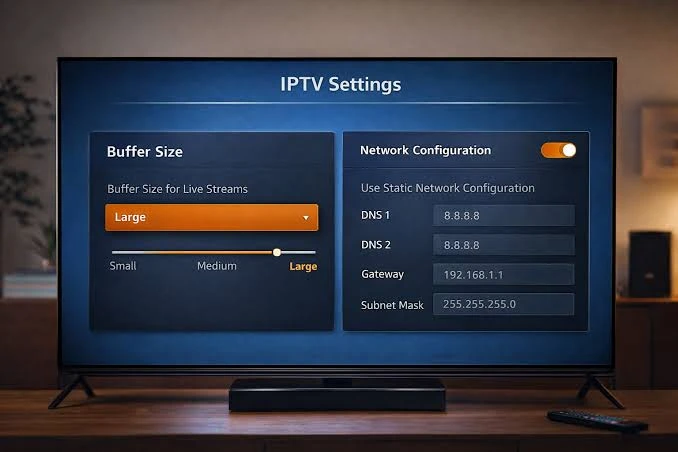 Android TV IPTV player settings for reducing buffering
8. Restart Your Firestick
Firestick devices can experience performance problems after running applications for long periods.
A restart can clear temporary memory states and close background processes.
If your Firestick is buffering:
- Close the IPTV application.
- Restart the Firestick.
- Wait for the home screen to load completely.
- Open the IPTV player.
- Test the same channel again.
If buffering continues, check available storage and application cache.
9. Keep Your Smart TV or Android TV Updated
Older software can sometimes cause compatibility and playback problems.
Check for available updates for:
- Smart TV firmware
- Android TV
- Google TV
- Fire TV software
- IPTV player application
After installing an update, restart the device before testing the stream again.
10. Check Whether Only One Channel Buffers
This is an extremely useful test.
If one channel buffers while other channels play normally, your internet connection may not be the problem.
The individual stream could be experiencing:
- High server load
- Temporary maintenance
- A damaged stream
- Network routing problems
- A source-specific issue
Try several channels from different categories.
If everything else works normally, avoid changing your entire network configuration just because one stream is unstable.
11. IPTV Buffers Only During the Evening
If IPTV works perfectly during the day but becomes unstable during peak evening hours, network congestion may be involved.
Possible causes include:
- Increased household network usage
- Local ISP congestion
- Wi-Fi interference
- Increased traffic affecting the streaming service
Compare playback at different times.
This pattern can help distinguish a local device problem from a network or server-side issue.
Do not automatically assume that your ISP is throttling IPTV simply because buffering happens at night. Test the same device with other streaming services and compare the results.
12. Check Your Streaming Device's Performance
Older Smart TVs, Firesticks and Android TV boxes may struggle with demanding streams.
This becomes more noticeable with:
- High-bitrate 4K streams
- HEVC/H.265 video
- Long viewing sessions
- Multiple applications running simultaneously
Close unnecessary applications and make sure the device has enough free storage.
If the device becomes hot and performance gets worse after extended streaming, overheating may also be worth investigating.
13. Test Another IPTV Player
Sometimes the player itself is the source of the problem.
If your IPTV credentials and playlist work but playback remains unstable, test the same stream with another compatible IPTV player.
This is particularly useful when:
- One player buffers but another does not
- Audio/video synchronization is incorrect
- The application crashes
- Certain video formats do not play correctly
If another player works normally on the same device and network, the original application may need an update or configuration change. Check if you have an IPTV Audio Out of Sync issue as well.
For more information about choosing a suitable IPTV application and getting started, see our Setup Guide.
14. Check Whether the Problem Is the Service or Your Setup
Before changing everything, perform a simple comparison.
If every channel buffers:
Check your network, device and player.
If only one channel buffers:
The individual stream may be the problem.
If buffering happens only on one device:
Focus on that device.
If buffering happens on multiple devices:
Check your network and the streaming service.
If HD works but 4K buffers:
Check bandwidth, decoding capability and device performance.
If buffering starts after extended use:
Check device temperature and available resources.
This approach can save a lot of unnecessary troubleshooting.
 Smooth IPTV streaming after fixing buffering problems
Quick IPTV Buffering Checklist
| Problem | What to Check |
|---|---|
| All channels buffer | Internet connection |
| One channel buffers | Individual stream |
| Firestick buffers | Cache, storage and device performance |
| Android TV buffers | Wi-Fi, player settings and decoder |
| Smart TV buffers | Wi-Fi and TV software |
| 4K buffers but HD works | Bandwidth and hardware decoding |
| Buffering at night | Network congestion |
| Buffering after long sessions | Device temperature |
| One player buffers | Try another compatible player |
| Random buffering | Wi-Fi stability and packet loss |
When Should You Contact Your IPTV Provider?
If you have tested your internet connection, restarted your equipment, tried another player and confirmed that several devices experience the same issue, the problem may be outside your home network.
Contact your provider if:
- Multiple channels stop working
- The entire service becomes unavailable
- Several devices show the same problem
- The issue continues despite a stable connection
- Other internet streaming services work normally
A good support team should be able to tell you whether there is an ongoing server or maintenance issue.
Frequently Asked Questions
Conclusion
IPTV buffering does not always mean that you need a faster internet plan or a different IPTV service.
Start with the basics: test the connection on the actual streaming device, restart your router and device, improve your Wi-Fi connection or test Ethernet.
Then move to the IPTV player's cache, buffer and decoder settings.
If the problem affects only one channel, the stream itself may be responsible. If several devices experience the same issue, investigate the network or service instead. Have more questions? Visit our FAQ.
The most effective troubleshooting method is simple: identify the pattern first, change one setting at a time, and test the result.
For additional streaming optimization tips, read: How to Improve IPTV Streaming Quality on Any Device
Ready for a stable stream? Check out our Pricing.